- TI nspire
[TI-Nspire] 설정 - 표시 자릿수 Display Digits 설정과 유효 자릿수 Significant Digits
-

- 2024.10.15 - 15:00 2024.10.15 - 14:26 2399
1. 자릿수 설정 들어가기
 Document
 Settings & Status ▶
 Document Settings...
2. Document Settings
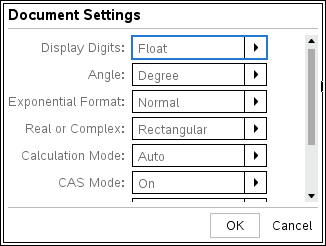
- Display : Float(기본), Float(1~12), Fix(1~12)
- Angle : Degree(기본), Radian, Gradian
- Exponential Format : Normal(기본), Scientific, Engineering
- Real or Complex : Rectangular(기본), Real, Polar
- Calculatorn Mode : Auto(기본), Exact, Approximate
- CAS Mode : On(기본), Exact Arithmetic, Off
- Vector Format : Rectangular(기본), Cylindrical, Spherical
- Base : Deccimal(기본), Hex, Binary
- Unit System : SI(기본), Eng/US
위의 설정을 필요에 따라 변경하시면 됩니다.
Default 값을 그대로 사용하셔도 됩니다.
Angle 은 Radian 으로 바꾸시는 걸 추천드립니다. 불편하시면 Degree로 다시 돌아가시면 되구요.
3. 설정 상세 설명
위 설정들 중 자릿수 표시에 직접적으로 영향을 미치는 것은
Display / Exponential 두가지입니다.
Display
둘 중에서도 Display 부분을 주로 신경쓰시면 됩니다.
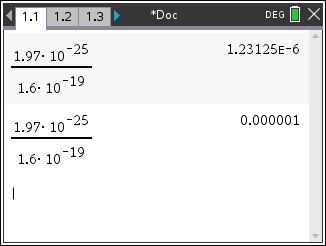
ㄴ 위(Float), 아래(Fix6)
|
Setting |
예시 |
설명 |
|---|---|---|
|
FIX |
123. (FIX 0) |
결과값이 |
|
FLOAT |
123.456789012 |
소숫점 자릿수가 |
|
FLOAT |
1.E2 (FLOAT 1) |
결과값이 |
Exponential
결과값이 E를 사용한 방식, 즉 지수 표현방식이 되었을 때,
지수 표현 방식 중에서 어떤 방식을 채택할 것인지에 대한 설정입니다.
가장 일반적인 것은 Scientific Notation (과학적 표기)입니다만, 그냥 Normal 로 두셔도 과학적 표기로 잘 나오게 됩니다.
Engineering Notation 은 지수를 3의 배수로만 표현하는 방식입니다.
SI Prefix (T, G, M, k, m, μ, n, p) 를 이용해 나타낼 수는 없지만, 그 대안으로 쓸 수는 있겠습니다.
4. 표시 자릿수 vs 계산기 내부 유효 자릿수 (Significant Digits)
- 계산기 내부에서 사용되는 전체 유효한 자릿수 숫자는 14개이지만, 화면에 표시되는 최대의 자릿수는 12개입니다.
- 12자릿수까지만 화면에 보이는 결과값을 재활용하더라도 숨어있는 자릿수까지 모두 계산에 사용됩니다.
- 화면에 표시되는 자릿수는 화면 표시 가능 최대 자릿수 12개중 일부이지만,
키패드를 이용해 그 결과값으로 이동(하이라이트 표시됨)하여 【enter】를 누르면 entry 제일 아래에 최대 12자리까지가 모두 선택되어 표시됩니다.
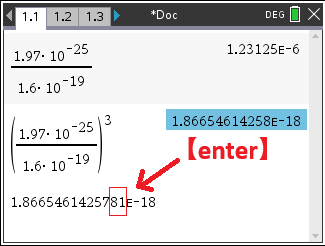
-나머지 13번째 14번째 자릿수까지 확인하는 방법 : https://allcalc.org/8848
-
25
세상의모든계산기 님의 최근 댓글
아 그렇네요. 감사합니다. ^^ 2026 04.28 정적분 구간에 미지수가 있고, solve 를 사용할 수 없을 때 그 값을 확인하려면? https://allcalc.org/57087 `SOLVE` 기능 내에 `∫(적분)` 기호를 사용할 수 없을 때 뉴튼-랩슨법을 직접 사용하는 방법 2026 04.15 뉴턴-랩슨 적분 방정식 시각화 v1.0 body { font-family: 'Pretendard', -apple-system, BlinkMacSystemFont, "Segoe UI", Roboto, Helvetica, Arial, sans-serif; display: flex; flex-direction: column; align-items: center; background: #f8f9fa; padding: 40px 20px; margin: 0; color: #333; } .container { background: white; padding: 40px; border-radius: 20px; box-shadow: 0 15px 35px rgba(0,0,0,0.08); max-width: 900px; width: 100%; } header { border-bottom: 2px solid #f1f3f4; margin-bottom: 30px; padding-bottom: 20px; } h1 { color: #1a73e8; margin: 0 0 10px 0; font-size: 1.8em; } p.subtitle { color: #5f6368; margin: 0; font-size: 1.1em; } .equation-box { background: #f1f3f4; padding: 15px; border-radius: 10px; text-align: center; margin-bottom: 30px; font-size: 1.3em; } canvas { border: 1px solid #e0e0e0; border-radius: 12px; background: #fff; width: 100%; height: auto; display: block; } .controls { margin-top: 30px; display: flex; gap: 15px; align-items: center; justify-content: center; flex-wrap: wrap; } button { padding: 12px 25px; border: none; border-radius: 8px; background: #1a73e8; color: white; cursor: pointer; font-weight: 600; font-size: 1em; transition: all 0.2s; box-shadow: 0 2px 5px rgba(26,115,232,0.3); } button:hover { background: #1557b0; transform: translateY(-1px); box-shadow: 0 4px 8px rgba(26,115,232,0.4); } button:active { transform: translateY(0); } button.secondary { background: #5f6368; box-shadow: 0 2px 5px rgba(0,0,0,0.2); } button.secondary:hover { background: #4a4e52; } .status-badge { background: #e8f0fe; color: #1967d2; padding: 8px 15px; border-radius: 20px; font-weight: bold; font-size: 0.9em; } .explanation { margin-top: 40px; padding: 25px; background: #fff8e1; border-left: 5px solid #ffc107; border-radius: 8px; line-height: 1.8; } .explanation h3 { margin-top: 0; color: #856404; } .math-symbol { font-family: 'Times New Roman', serif; font-style: italic; font-weight: bold; color: #d93025; } .code-snippet { background: #202124; color: #e8eaed; padding: 2px 6px; border-radius: 4px; font-family: monospace; } 📊 Newton-Raphson 적분 방정식 시뮬레이터 미분적분학의 기본 정리(FTC)를 이용한 수치해석 시각화 목표 방정식: ∫₀ᴬ (2√x) dx = 20 을 만족하는 A를 찾아라! 계산 시작 (A 추적) 초기화 현재 반복: 0회 💡 시각적 동작 원리 (Newton-Raphson & FTC) Step 1 (오차 측정): 현재 A까지 쌓인 파란색 면적이 목표치(20)와 얼마나 차이나는지 계산합니다. Step 2 (FTC의 마법): 면적의 변화율(미분)은 그 지점의 그래프 높이 f(A)와 같습니다. Step 3 (보정): 다음 A = 현재 A - (면적 오차 / 현재 높이) 공식을 사용하여 A를 이동시킵니다. 결론: 오차를 현재 높이로 나누면, 오차를 메우기 위해 필요한 가로 길이(ΔA)가 나옵니다. 이 과정을 반복하면 정답에 도달합니다! const canvas = document.getElementById('graphCanvas'); const ctx = canvas.getContext('2d'); const iterText = document.getElementById('iterText'); // 수학 설정 const targetArea = 20; const f = (x) => Math.sqrt(x) * 2; // 피적분 함수 f(x) = 2√x const F = (x) => (4/3) * Math.pow(x, 1.5); // 정적분 결과 F(x) = ∫ 2√x dx = 4/3 * x^(3/2) let A = 1.5; // 초기값 let iteration = 0; let animating = false; // 그래프 드로잉 설정 const scale = 50; const offsetX = 60; const offsetY = 380; function drawGrid() { ctx.strokeStyle = '#f1f3f4'; ctx.lineWidth = 1; ctx.beginPath(); for(let i=0; i 2026 04.11 참값 : A = ±2√5 근사값 : A≈±4.472135954999579392818347 2026 04.10 fx-570 ES 입력 결과 초기값 입력 반복 수식 입력 반복 결과 2026 04.10