- CASIO 9860
[fx-9860G] 각도(Angle)의 설정, 단위 입력 및 변환
1. 각도의 사전 설정
【SHIFT】【MENU】 에서 방향 키로 Angle 항목을 찾아간 후 원하는 단위 선택
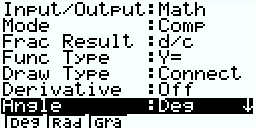
- 【F1】 Deg(도)
- 【F2】 Rad(호도, 라디안)
- 【F3】 Gra(그라디안)
2. 각도단위의 직접 입력 (사전 설정 단위을 무시함)
예시
설정은 radian 이더라도, 강제로 degree 단위로 입력
- 방법1
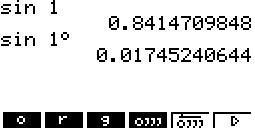
【OPTN】【F6】【F5】 (Angle)
화면하단에 나온 각도단위 표시를 입력(【F1】~【F3】)
- 방법2
CATALOG 에서 직접 찾아서 입력
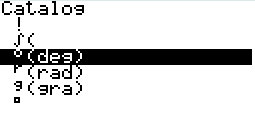
주의! (DMS 단위)
Degree 기호와 달리 DMS 단위기호(□)로는 강제 단위 인식이 불가능.
(DMS단위)˚ 와 같이 추가로 Degree 단위를 추가로 붙여야만 강제 인식이 가능.
3. 팁 (키가 고장났다구요?)
【F1】 ~ 【F6】 키가 고장나서 설정을 변경할 수 없는 경우라면?
http://kin.naver.com/qna/detail.nhn?d1id=11&dirId=1113&docId=234526997
π÷180
D 로 변수에 저장한 다음에, sin (60D) 와 같이 입력.
* 고장이 아니더라도 위와 같이 D나 G에 단위변환값을 넣어놓고 사용하면, D/G 두가지 각도단위를 동시에 사용하기 쉬움
4. 결과값의 변환 to DMS (도분초)
【F4】 로 화살표가 위에 있는 [$\overleftarrow{˚´˝} $] 를 선택
댓글1
-
세상의모든계산기
Program Mode
방법 1) 일반 모드에서 변경하고 프로그램 모드로 돌아오면 변경한 설정이 적용됩니다.
프로그램 모드 내(프로그램 LIST 화면)에서는 【SHIFT】【MENU】SET UP 을 눌러도 RUN.MAT 모드와 같은 각도 설정 화면이 뜨지 않기 때문에,
일반 모드에서 변경하고 프로그램 모드로 돌아오는 것입니다.
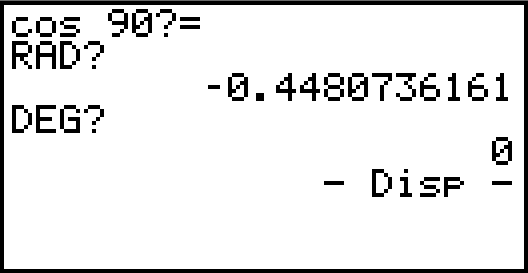
방법 2) 프로그램 외부의 각도 설정에 따라 프로그램 실행 결과가 달라지는 것은 바람직하지 않기 때문에
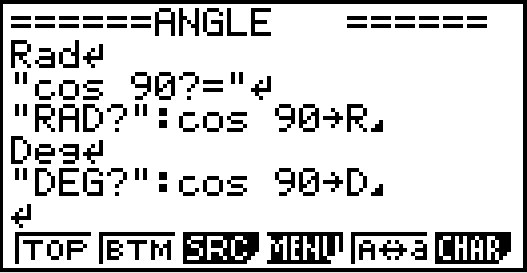
프로그램 내부에서 각도 설정을 명시적으로 입력하는 것이 좋습니다.
입력 방법 :
프로그램 작성 중 【SHIFT】【MENU】SET UP 을 누르면 화면 하단에 【F1】ANGL 탭이 나옵니다.
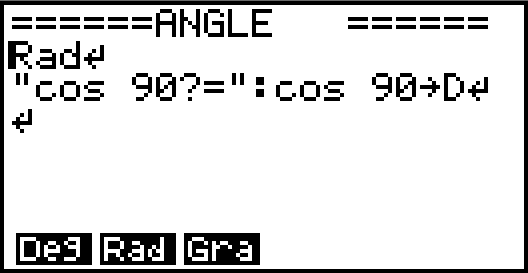
【F1】~【F3】 으로 원하는 각도 단위를 선택하면,
프로그램 내에 각도 설정 명령이 입력됩니다.
세상의모든계산기 님의 최근 댓글
뉴턴-랩슨 적분 방정식 시각화 v1.0 body { font-family: 'Pretendard', -apple-system, BlinkMacSystemFont, "Segoe UI", Roboto, Helvetica, Arial, sans-serif; display: flex; flex-direction: column; align-items: center; background: #f8f9fa; padding: 40px 20px; margin: 0; color: #333; } .container { background: white; padding: 40px; border-radius: 20px; box-shadow: 0 15px 35px rgba(0,0,0,0.08); max-width: 900px; width: 100%; } header { border-bottom: 2px solid #f1f3f4; margin-bottom: 30px; padding-bottom: 20px; } h1 { color: #1a73e8; margin: 0 0 10px 0; font-size: 1.8em; } p.subtitle { color: #5f6368; margin: 0; font-size: 1.1em; } .equation-box { background: #f1f3f4; padding: 15px; border-radius: 10px; text-align: center; margin-bottom: 30px; font-size: 1.3em; } canvas { border: 1px solid #e0e0e0; border-radius: 12px; background: #fff; width: 100%; height: auto; display: block; } .controls { margin-top: 30px; display: flex; gap: 15px; align-items: center; justify-content: center; flex-wrap: wrap; } button { padding: 12px 25px; border: none; border-radius: 8px; background: #1a73e8; color: white; cursor: pointer; font-weight: 600; font-size: 1em; transition: all 0.2s; box-shadow: 0 2px 5px rgba(26,115,232,0.3); } button:hover { background: #1557b0; transform: translateY(-1px); box-shadow: 0 4px 8px rgba(26,115,232,0.4); } button:active { transform: translateY(0); } button.secondary { background: #5f6368; box-shadow: 0 2px 5px rgba(0,0,0,0.2); } button.secondary:hover { background: #4a4e52; } .status-badge { background: #e8f0fe; color: #1967d2; padding: 8px 15px; border-radius: 20px; font-weight: bold; font-size: 0.9em; } .explanation { margin-top: 40px; padding: 25px; background: #fff8e1; border-left: 5px solid #ffc107; border-radius: 8px; line-height: 1.8; } .explanation h3 { margin-top: 0; color: #856404; } .math-symbol { font-family: 'Times New Roman', serif; font-style: italic; font-weight: bold; color: #d93025; } .code-snippet { background: #202124; color: #e8eaed; padding: 2px 6px; border-radius: 4px; font-family: monospace; } 📊 Newton-Raphson 적분 방정식 시뮬레이터 미분적분학의 기본 정리(FTC)를 이용한 수치해석 시각화 목표 방정식: ∫₀ᴬ (2√x) dx = 20 을 만족하는 A를 찾아라! 계산 시작 (A 추적) 초기화 현재 반복: 0회 💡 시각적 동작 원리 (Newton-Raphson & FTC) Step 1 (오차 측정): 현재 A까지 쌓인 파란색 면적이 목표치(20)와 얼마나 차이나는지 계산합니다. Step 2 (FTC의 마법): 면적의 변화율(미분)은 그 지점의 그래프 높이 f(A)와 같습니다. Step 3 (보정): 다음 A = 현재 A - (면적 오차 / 현재 높이) 공식을 사용하여 A를 이동시킵니다. 결론: 오차를 현재 높이로 나누면, 오차를 메우기 위해 필요한 가로 길이(ΔA)가 나옵니다. 이 과정을 반복하면 정답에 도달합니다! const canvas = document.getElementById('graphCanvas'); const ctx = canvas.getContext('2d'); const iterText = document.getElementById('iterText'); // 수학 설정 const targetArea = 20; const f = (x) => Math.sqrt(x) * 2; // 피적분 함수 f(x) = 2√x const F = (x) => (4/3) * Math.pow(x, 1.5); // 정적분 결과 F(x) = ∫ 2√x dx = 4/3 * x^(3/2) let A = 1.5; // 초기값 let iteration = 0; let animating = false; // 그래프 드로잉 설정 const scale = 50; const offsetX = 60; const offsetY = 380; function drawGrid() { ctx.strokeStyle = '#f1f3f4'; ctx.lineWidth = 1; ctx.beginPath(); for(let i=0; i 2026 04.11 참값 : A = ±2√5 근사값 : A≈±4.472135954999579392818347 2026 04.10 fx-570 ES 입력 결과 초기값 입력 반복 수식 입력 반복 결과 2026 04.10 파이썬 코드 검증 결과 초기값: 5.0 반복 1회차: 4.5000000000 반복 2회차: 4.4722222222 반복 3회차: 4.4721359558 반복 4회차: 4.4721359550 반복 5회차: 4.4721359550 초기값: 10.0 반복 1회차: 6.0000000000 반복 2회차: 4.6666666667 반복 3회차: 4.4761904762 반복 4회차: 4.4721377913 반복 5회차: 4.4721359550 2026 04.10 감사합니다. 주말 잘 보내세요. 2026 03.06