
- 세상의 모든 계산기 자유(질문) 게시판 팁 & 정보 ()
(프로그램) 계산기 폰트를 이미지로 저장하는 python 프로그램
-

- 2024.06.28 - 17:19 2024.06.26 - 08:43 9343 4
import os
import tkinter as tk
from tkinter import filedialog
from PIL import Image, ImageDraw, ImageFont
from fontTools.ttLib import TTFont

def create_character_images(font_path, output_folder, output_height=32):
    # 폰트 파일 로드
    font_size = output_height * 2  # 초기 폰트 크기를 출력 높이의 2배로 설정
    font = ImageFont.truetype(font_path, font_size)
    ttfont = TTFont(font_path)

    # 출력 폴더 생성
    os.makedirs(output_folder, exist_ok=True)

    # 폰트에서 사용 가능한 모든 문자 추출
    characters = set()
    for table in ttfont['cmap'].tables:
        for char_code, char_name in table.cmap.items():
            if char_code < 0x10000:  # Unicode 범위 내의 문자만 처리
                characters.add(chr(char_code))

    # 각 문자에 대해 이미지 생성
    for char in characters:
        # 문자의 크기 측정
        left, top, right, bottom = font.getbbox(char)
        width = max(1, right - left)
        height = max(1, bottom - top)

        # 여유 공간 추가
        padding = font_size // 20  # 폰트 크기의 5%를 패딩으로 사용
        width += padding * 2
        height += padding * 2

        # 이미지 생성
        img = Image.new('RGBA', (width, height), (255, 255, 255, 0))
        draw = ImageDraw.Draw(img)

        # 문자 그리기
        draw.text((padding - left, padding - top), char, font=font, fill=(0, 0, 0, 255))

        # 여백 제거
        bbox = img.getbbox()
        if bbox:
            img = img.crop(bbox)
        else:
            continue  # 빈 이미지인 경우 건너뛰기

        # 높이를 32픽셀로 조정하면서 비율 유지
        if img.height > 0:
            new_height = output_height
            new_width = max(1, int(img.width * (new_height / img.height)))
            img = img.resize((new_width, new_height), Image.LANCZOS)
        else:
            continue  # 높이가 0인 경우 건너뛰기

        # 이미지 저장
        filename = f"{ord(char):04X}.png"
        img.save(os.path.join(output_folder, filename))

    print(f"{output_folder}에 생성된 이미지: {len(characters)}개")

# 파일 선택 대화상자 표시
root = tk.Tk()
root.withdraw()  # 기본 창 숨기기
font_path = filedialog.askopenfilename(
    title="폰트 파일 선택",
    filetypes=[("TrueType Font", "*.ttf"), ("All Files", "*.*")]
)

if font_path:
    # 출력 폴더 생성
    font_dir = os.path.dirname(font_path)
    font_name = os.path.splitext(os.path.basename(font_path))[0]
    output_folder = os.path.join(font_dir, font_name)

    create_character_images(font_path, output_folder, output_height=32)
else:
    print("폰트 파일이 선택되지 않았습니다.")
1. 실행
2. .ttf 폰트 파일 선택
3. 선택한 폰트 파일이 있는 곳 아래에 폰트파일명의 폴더가 생성됨
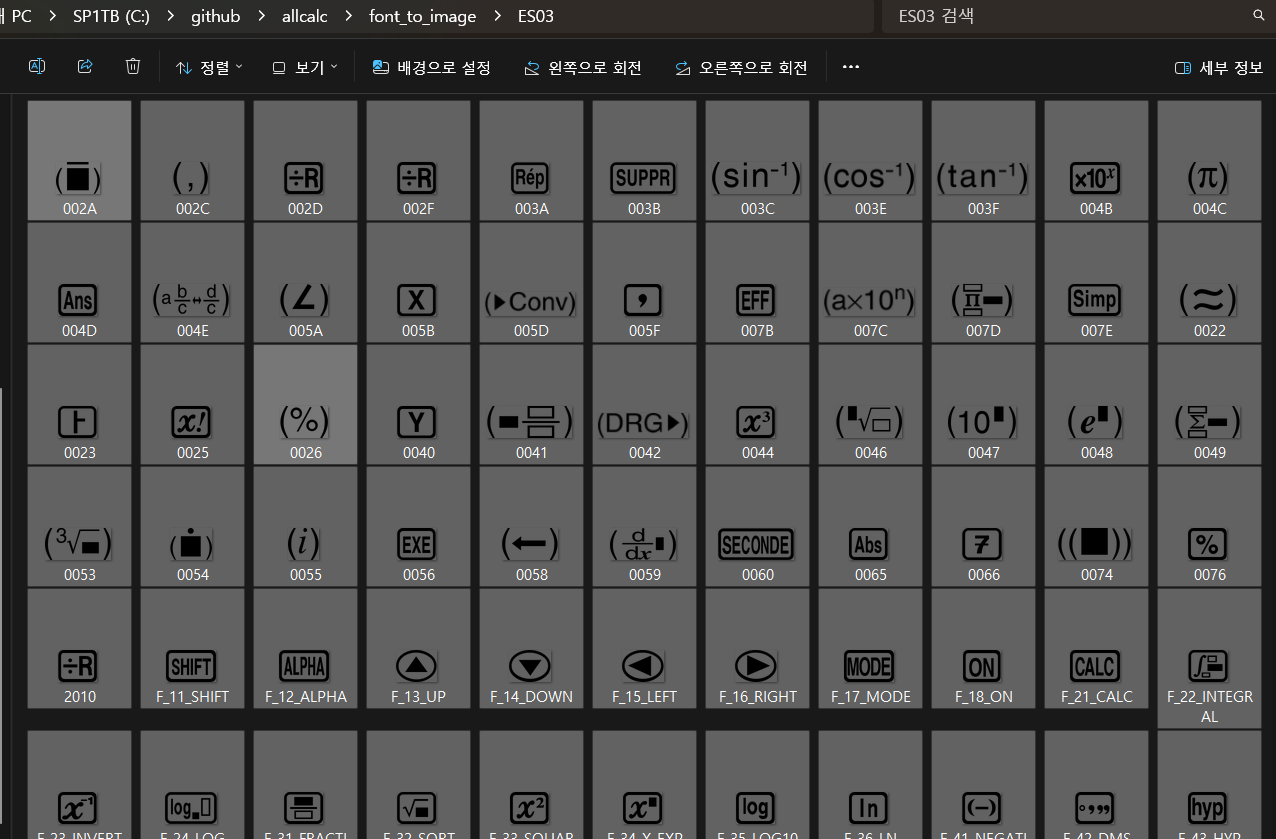
4. 폰트 이미지가 png 파일로 저장됨 : 배경(background) 없음.
-
25
댓글4
-
세상의모든계산기
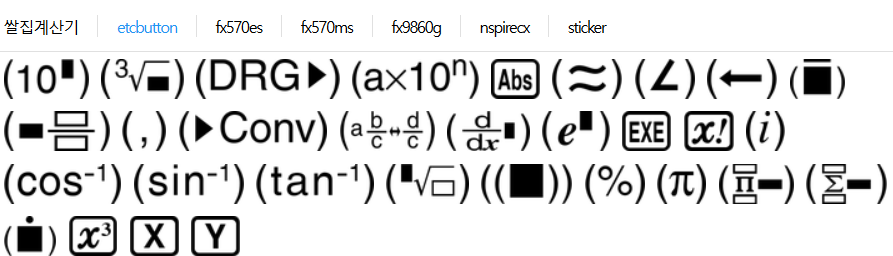
버튼 안쪽은 색이 칠해지는게 좋을 것 같기도 한데...
일단은 이걸로 만족합니다.
예전에 폰트 설치하고,
문서 보면서
-> 포토샵에서 키 하나씩 눌러가며 이미지 만들고
-> 크기 맞춰서 저장하고
-> 또 리사이즈하고
하나하나 삽질하면서 만들었던 기억이 나는데
인공지능 시대가 좋네요.
프로그램 찾는 것보다도 빠르게 맞춤형으로 만들어주니...
* 사이트에 올릴 때는 파일명 순서로 나와서,
계산기 버튼 배치에 맞게 파일명은 노가다로 수정해 주어야 합니다.
-
세상의모든계산기 님의 최근 댓글
링크가 깨졌다고 하시니 404 에러가 나는 아래 링크를 말씀하시는 것 같은데 https://digilander.libero.it/fpirozzi/fourier.zip 이것은 TI-89 / TI-92 용 파일이며 [TI-92][TI-89] Fourier Transform Library https://allcalc.org/52455 링크의 Attached files + 안에 있습니다. 2026 09.11 본문에 사용된 nspire 용 파일은 본문 하단에 Attached files + 안에 있습니다. 클릭하면 표시됩니다. 2026 09.11 이 사이트에 올라와 있는 첨부 파일은 본문 하단에 있는 [Attached files +] 버튼을 눌러야 리스트가 보입니다. 2026 09.07 이렇게 질문하시면 무슨 파일인지 알 수가 없습니다. 해당 글에 댓글을 쓰시는게 최선이며, 권한 문제로 그것이 불가능하면 해당 글의 주소를 붙여넣으시거나, 제목 전체를 복사해 넣으셔야 구분이 됩니다. 2026 09.07 - claude AI는 l-c*r^2 을 1-c*r^2 으로 잘못 읽고 표시하고 있습니다. - TI-nspire CAS 계산기에 l-c*r^2 ≥0 을 조건에 추가해 계산해 보아도 결과는 바뀌지 않습니다. 2026 07.20